Sandbox · Practice Page
Play Around Here.
This page is not linked in the menu — it’s just for practice. Edit anything, click Update, then hard-refresh the live page (Ctrl+Shift+R) to see your change. You can’t break the real site from here.
1 · Native text blocks — click & type
These are the easy ones. Click the text and type. To colour a word green, select it and pick the “Acid” text colour in the sidebar (or ask me).
This Is A Heading Block
This is a paragraph block. You can make text bold, add a link, or highlight a word in green. Try changing this sentence.
- A native list item — press Enter for a new one
- Backspace on an empty line removes it
- Drag the ⋮⋮ handle to reorder
“This is a quote block — good for a testimonial or a callout.”
— Your name here
2 · Image block — click, then “Replace”
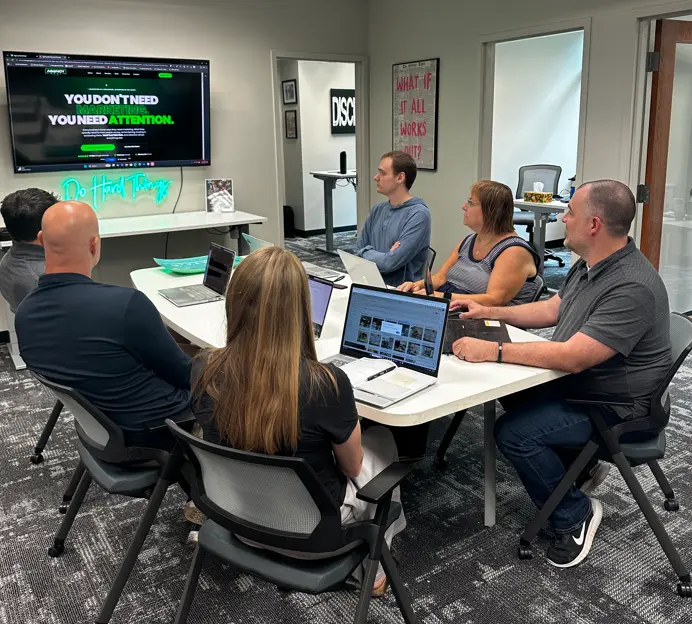
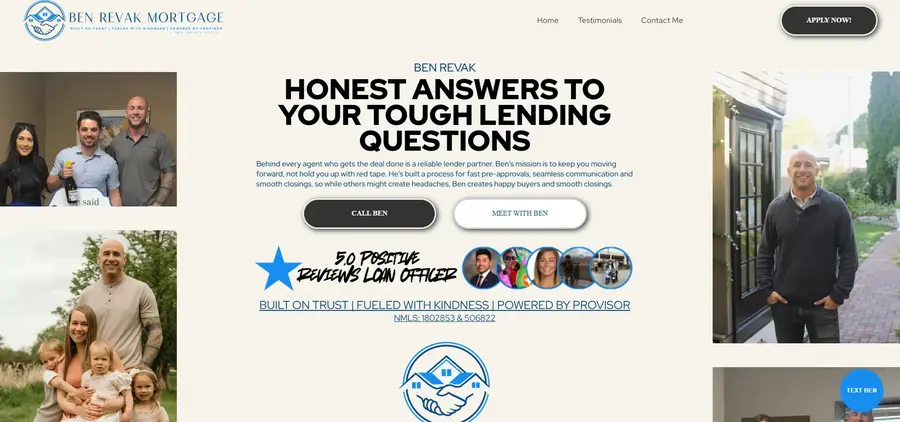
Click the image → toolbar → Replace to swap it. Always set Alt text in the right sidebar (Block tab) for SEO & accessibility.
3 · Buttons
Below: a native WordPress button (click to edit label; use the link icon for the URL). The site’s own green/outline buttons live inside HTML blocks — see section 5.
4 · Columns — native side-by-side layout
Left Column
Drop any blocks in here. Good for two-up text or text-next-to-image.
Right Column
On mobile these stack automatically.
5 · Styled section blocks (HTML) — edit the words only
These match the real site’s cards/stats. Click the block to edit — change text between the > and < only. Leave anything inside class="..." and the <svg> icons alone. Undo with Ctrl+Z if it looks wrong.
Card One
Edit this card text. These are the same cards used on the Home and Services pages.
Card Two
Hover me — notice the card lifts and the border turns green.
Card Three
Try changing this heading and paragraph, then Update.
This Is A CTA Block.
Same as the green-button section at the bottom of each real page. Edit the eyebrow, heading, and this line.
Sample Button